Welcome to the Zergaw Web Application Firewall (WAF) Management Portal. This platform provides comprehensive tools for monitoring, managing, and protecting your web applications from security threats. This overview provides a high-level summary of all available features to help you understand the full capabilities of the system.
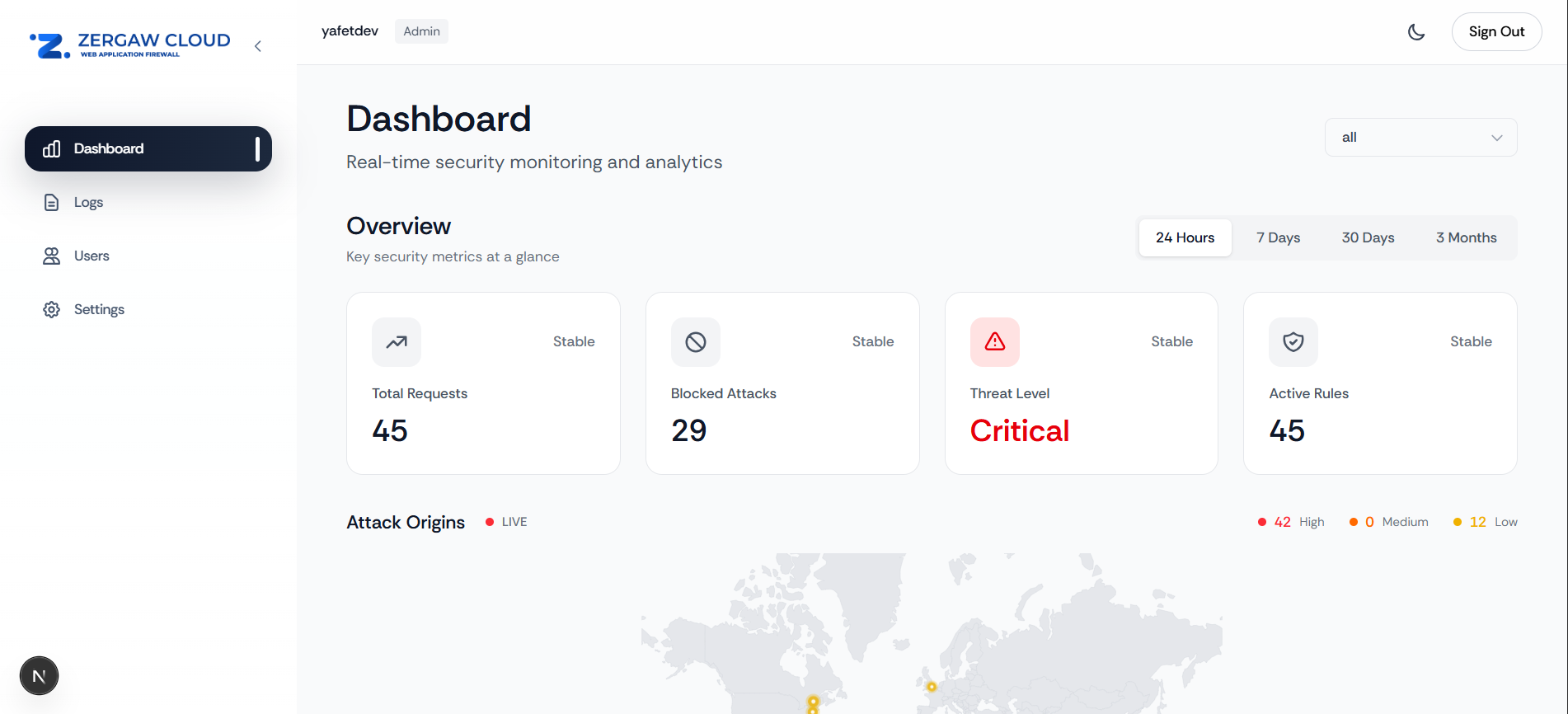
Screenshot: Main portal interface
¶ Core Features
¶ 1. Dashboard - Real-Time Security Monitoring
The Dashboard is your central command center providing real-time visibility into your security posture.
Key Capabilities:
- Overview Statistics: View total requests, blocked attacks, threat level, and active rules
- Attack Origins Map: Interactive world map showing geographic locations of attacks with color-coded severity indicators
- Attack Charts: Timeline visualizations showing attack patterns and trends over time
- Recent Activity Feed: Chronological list of the latest security events
- Time Range Filtering: Analyze data for 24 hours, 7 days, 30 days, or 3 months
- Domain Filtering: View metrics for specific domains or aggregate across all domains
Use Cases:
- Daily security monitoring
- Identifying attack patterns and trends
- Geographic threat analysis
- Quick threat assessment
For detailed information, see the Dashboard Guide
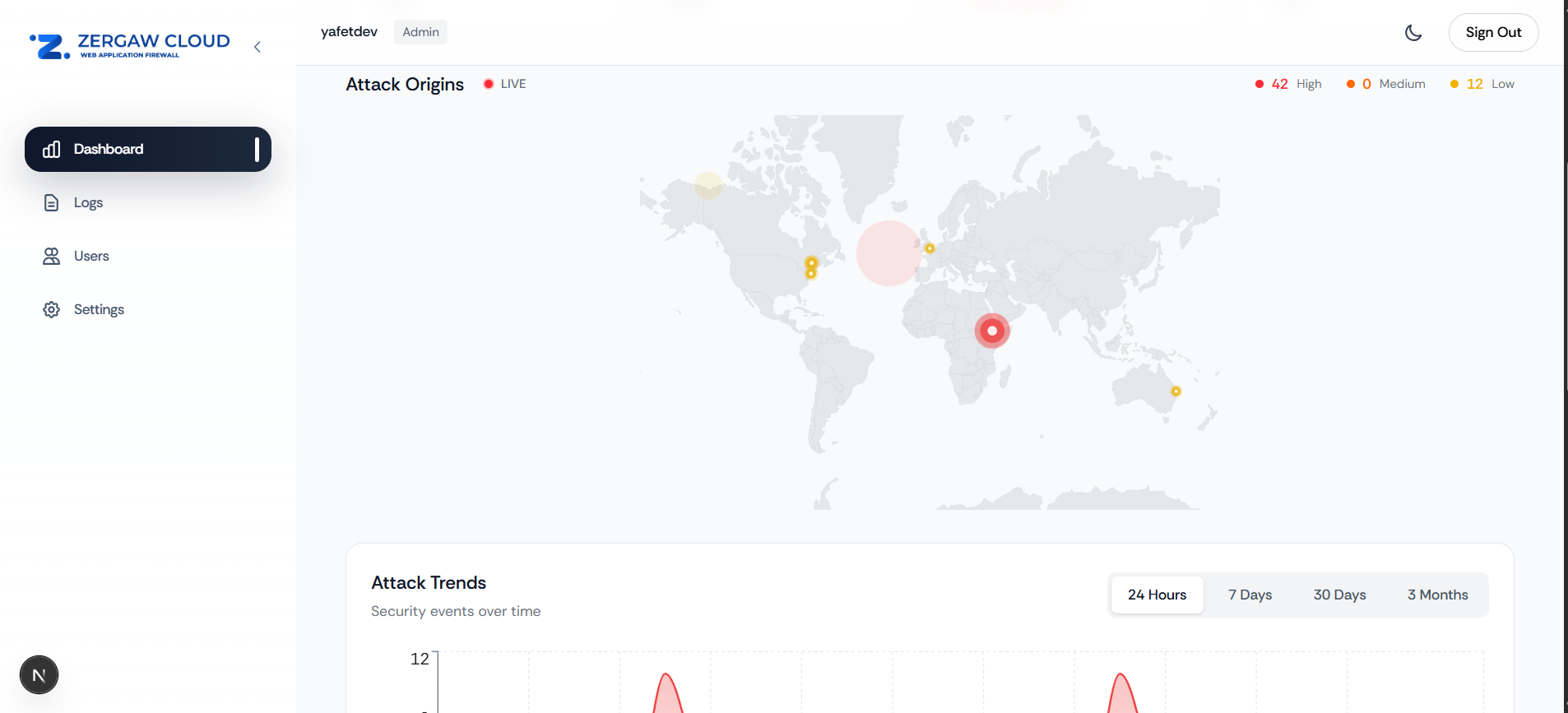
Screenshot: Dashboard with all components
¶ 2. Logs - Detailed Security Event Analysis
The Logs section provides comprehensive access to all security events and WAF activity.
Key Capabilities:
- Event Logs: Detailed records of all security events including blocked attacks, warnings, and allowed requests
- Advanced Filtering: Filter by domain, severity level, action type, IP address, and time range
- Search Functionality: Search through logs by rule name, IP address, or other criteria
- Log Details: View complete information about each event including headers, request details, and response codes
- Export Capabilities: Export log data for analysis or reporting
Information Displayed:
- Timestamp of each event
- Source IP address and geographic location
- Request method and URL
- Security rule that triggered
- Severity level (Critical, High, Medium, Low)
- Action taken (Blocked, Allowed, Warning)
Use Cases:
- Investigating specific security incidents
- Analyzing attack patterns
- Compliance reporting
- Forensic analysis
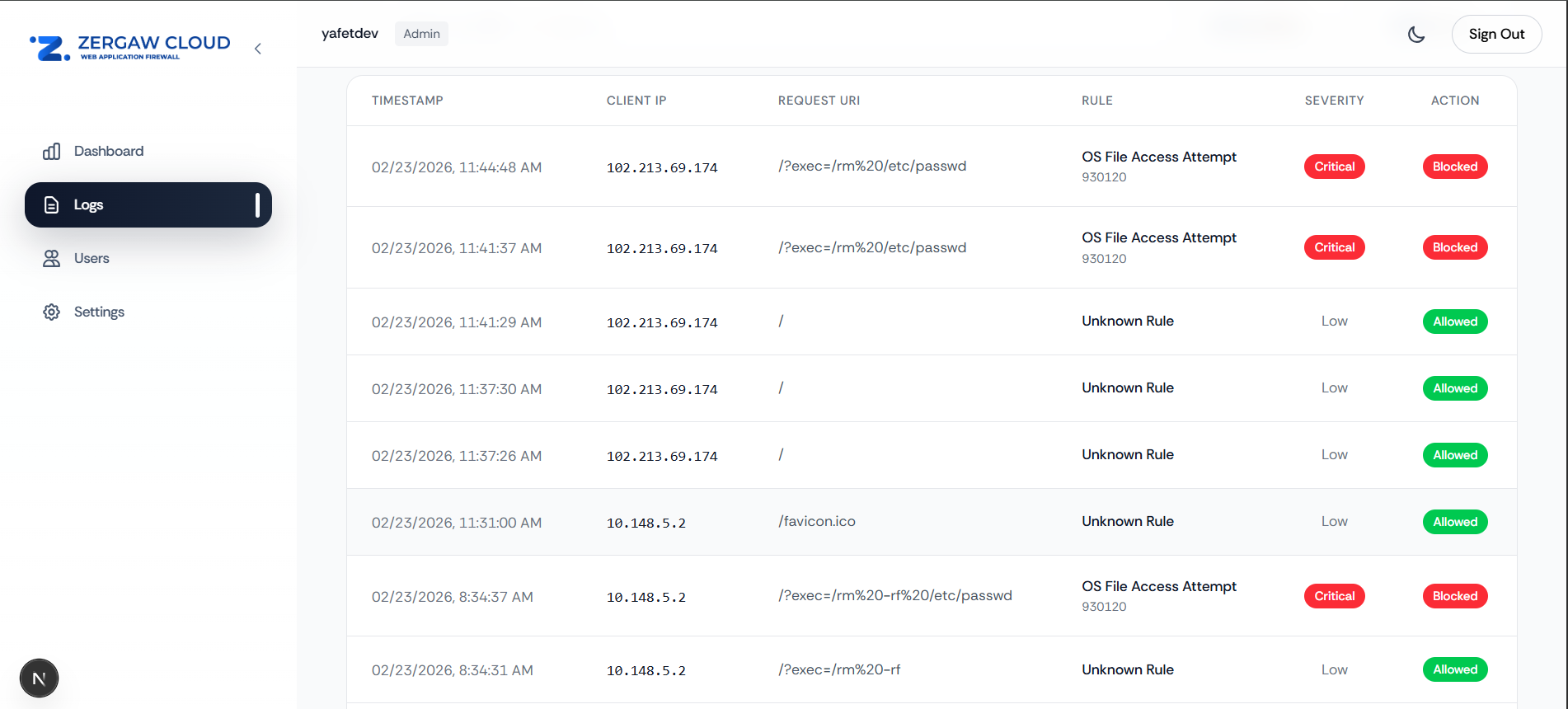
Screenshot: Logs page with filtering options
¶ 3. Attack Maps & Data Visualization
Visual analytics tools help you understand attack patterns and make data-driven security decisions.
Attack Origins Map:
- Interactive World Map: Visual representation of where attacks originate geographically
- Color-Coded Markers:
- Red markers indicate high-severity attacks
- Orange markers indicate medium-severity attacks
- Yellow markers indicate low-severity attacks
- Marker Size: Larger markers represent higher attack volumes
- Real-Time Updates: Live indicator shows map is updating with current threat data
- Severity Breakdown: Summary counts of attacks by severity level
Attack Charts:
- Timeline Visualization: See how attack activity changes over time
- Trend Analysis: Identify spikes, patterns, and anomalies
- Multiple Data Series: Compare different attack types or severities
- Interactive Hover Details: View exact values and timestamps
Use Cases:
- Identifying geographic attack patterns
- Detecting coordinated attacks
- Planning geo-blocking strategies
- Understanding attack trends over time
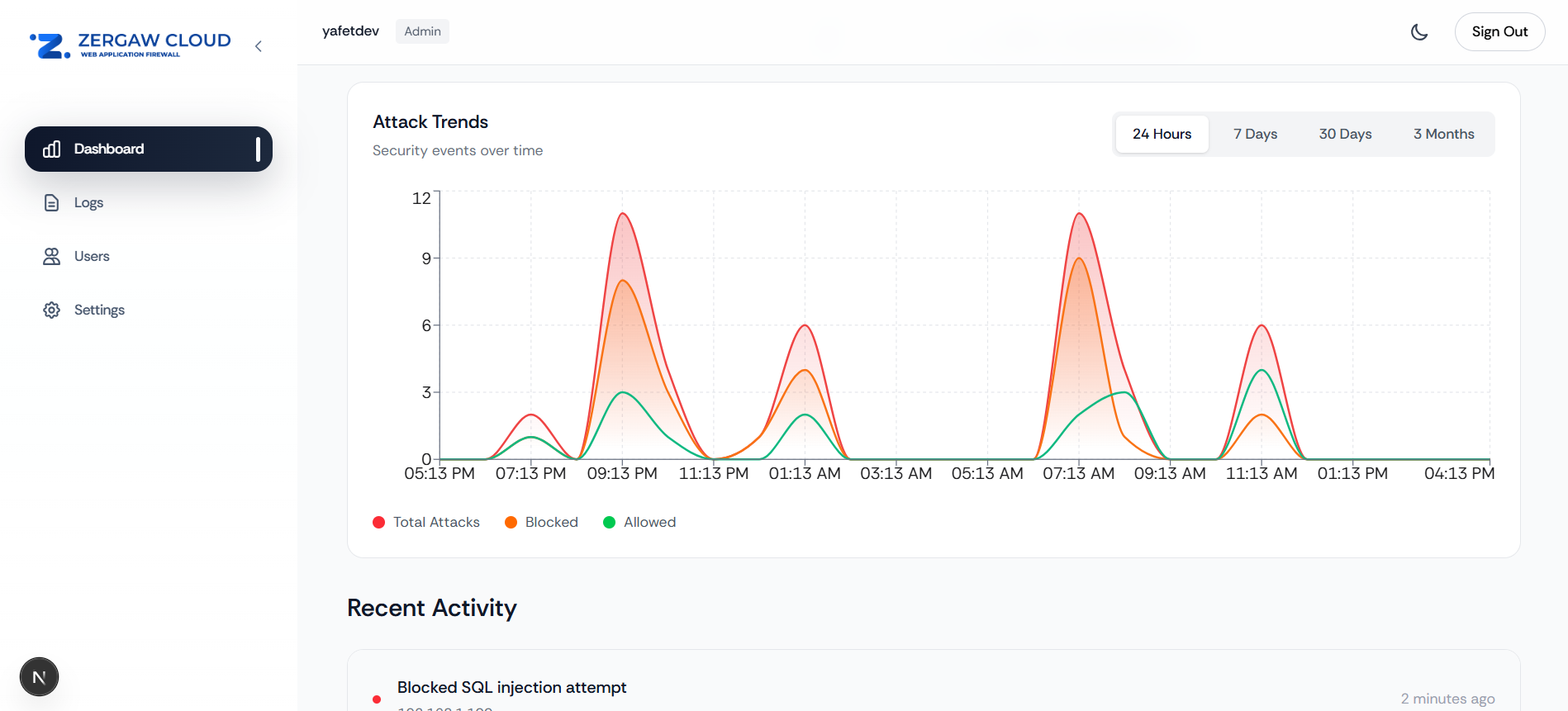
Screenshot: Attack timeline chart
¶ 4. User Management - Multi-Tenant Administration
Manage users and access control across your organization with role-based permissions.
Key Capabilities:
- User List: View all users in your organization
- Role Management: Assign roles (Admin, Viewer) to control access levels
- User Invitations: Send invitations to new users via email
- User Status: Enable or disable user accounts
- Access Control: Manage who can view and modify settings
User Roles:
- Admin: Full access to all features including settings, rules, and user management
- Viewer: Read-only access to dashboard, logs, and reports
Multi-Tenant Features:
- Organization Isolation: Each organization's data is completely separate
- Domain-Based Access: Users only see data for domains in their organization
- Scalable Management: Manage multiple organizations from a single portal
Use Cases:
- Onboarding new team member
- Adjusting access permissions
- Managing team structure
- Compliance and audit requirements
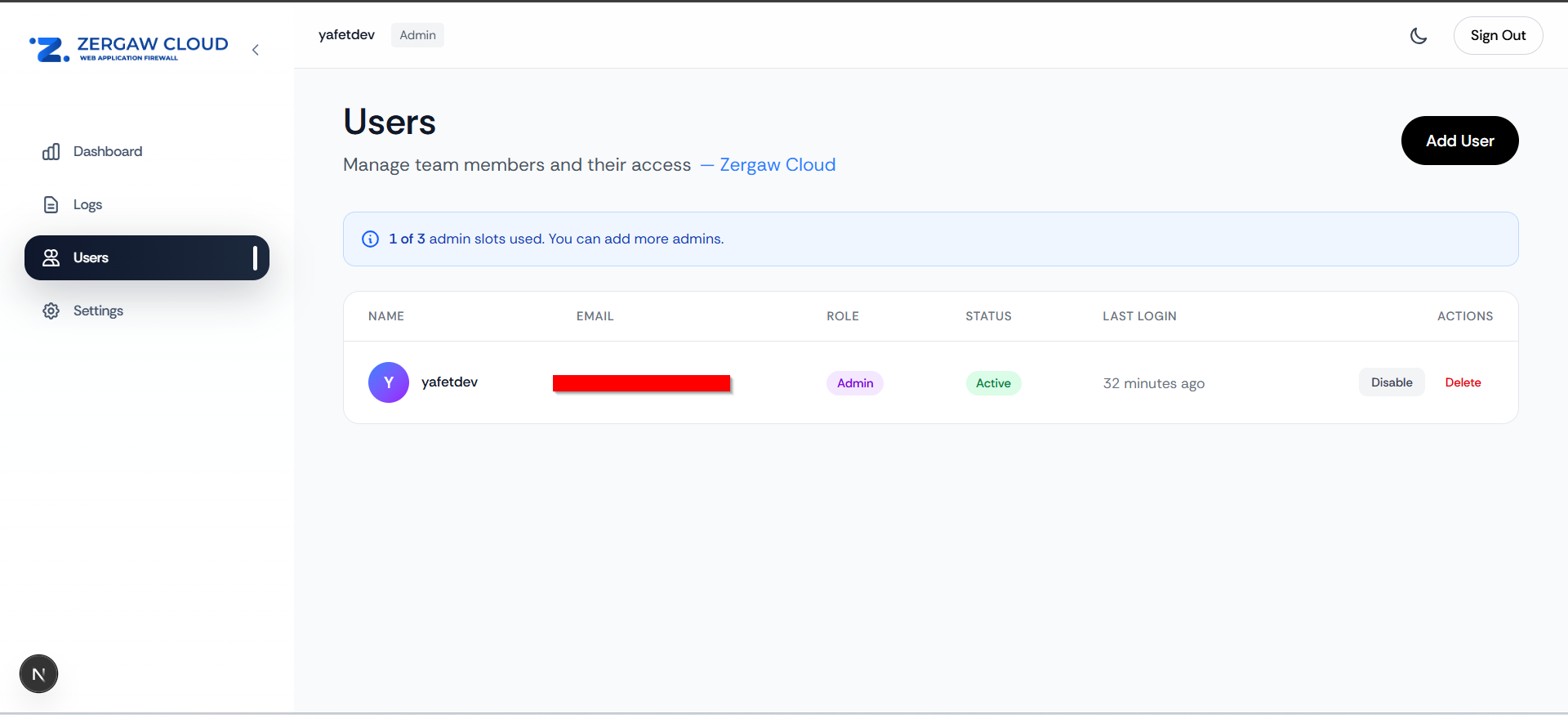
Screenshot: User management interface
¶ 5. Settings - Security Configuration
Comprehensive settings to customize your WAF protection and notifications.
¶ WAF Control
- Start/Stop WAF: Enable or disable WAF protection for each domain individually
- Domain-Specific Control: Manage WAF status per domain
- Status Indicators: Clear visual indicators showing which domains are protected
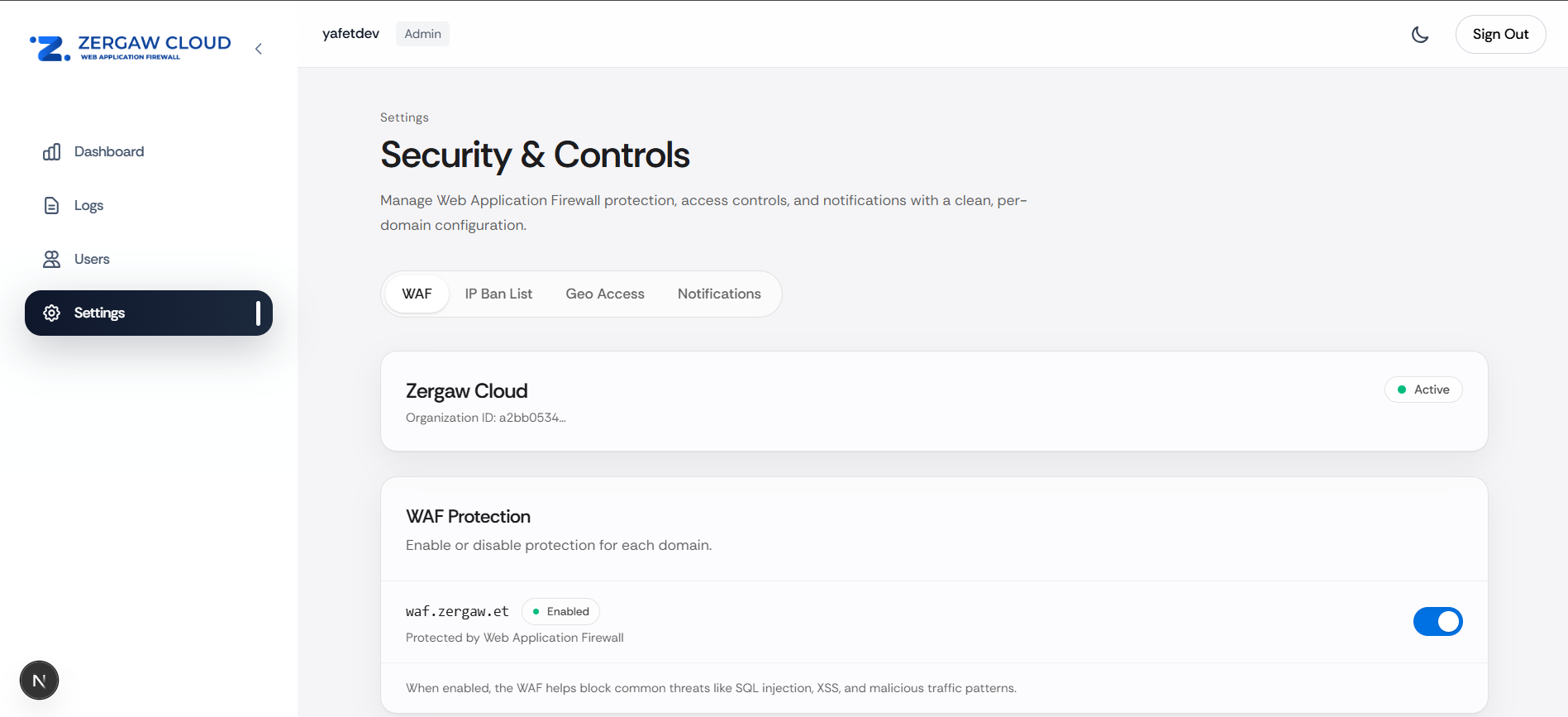
Screenshot: WAF enable/disable controls
¶ IP Ban Management
- Ban IP Addresses: Block specific IP addresses from accessing your domains
- IP List Management: View, add, and remove banned IP addresses
- Geographic Information: See country and location data for each IP
- Bulk Operations: Manage multiple IP bans efficiently
Use Cases:
- Blocking repeat attackers
- Preventing known malicious IPs
- Responding to specific threats
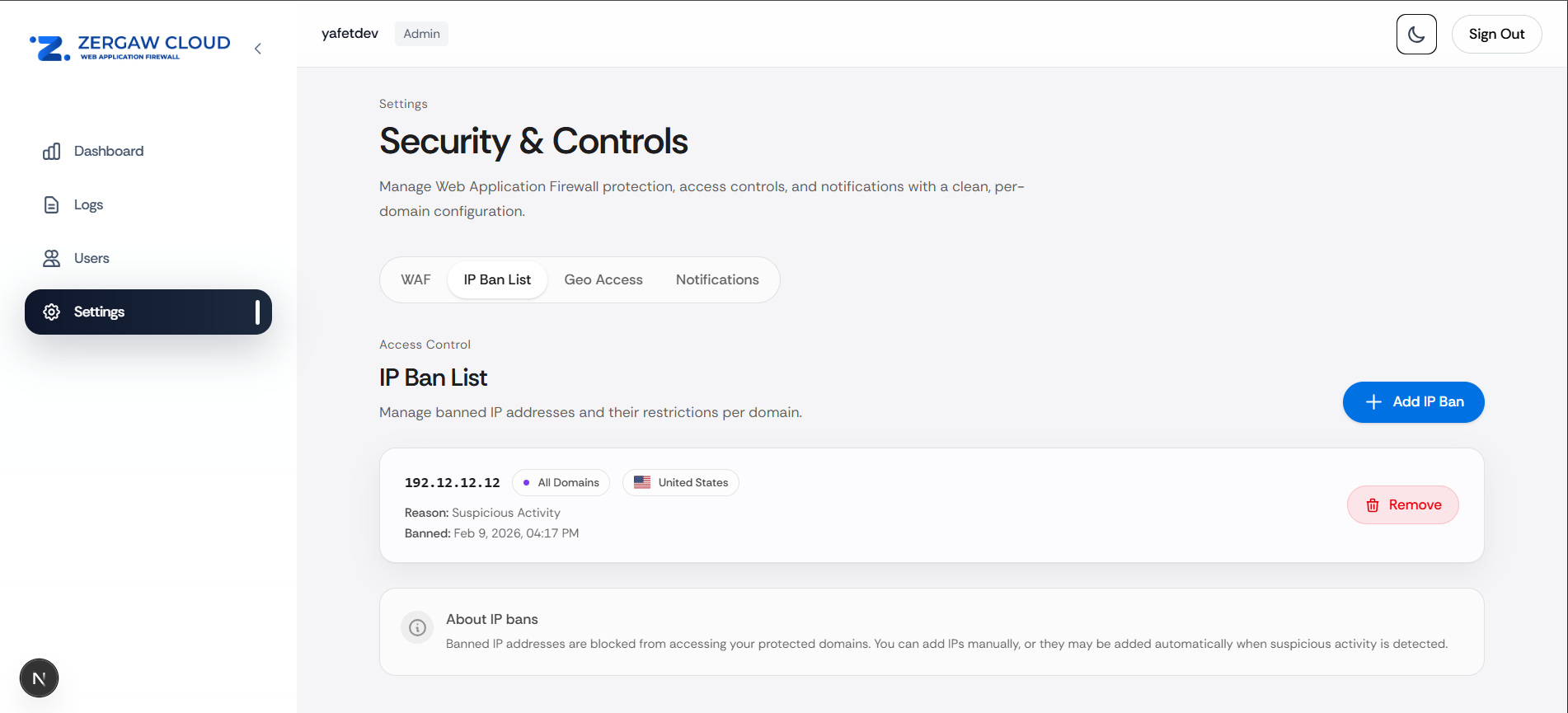
Screenshot: IP ban management interface
¶ Geo-Location Access Control
- Country-Based Filtering: Allow or block access based on geographic location
- Allow List Mode: Permit access only from specific countries
- Block List Mode: Block access from specific countries while allowing all others
- Domain-Specific Rules: Configure different geo-rules for each domain
- Country Selection: Choose from a comprehensive list of countries
Use Cases:
- Compliance with regional regulations
- Blocking high-risk geographic regions
- Allowing only specific markets
- Reducing attack surface from certain countries
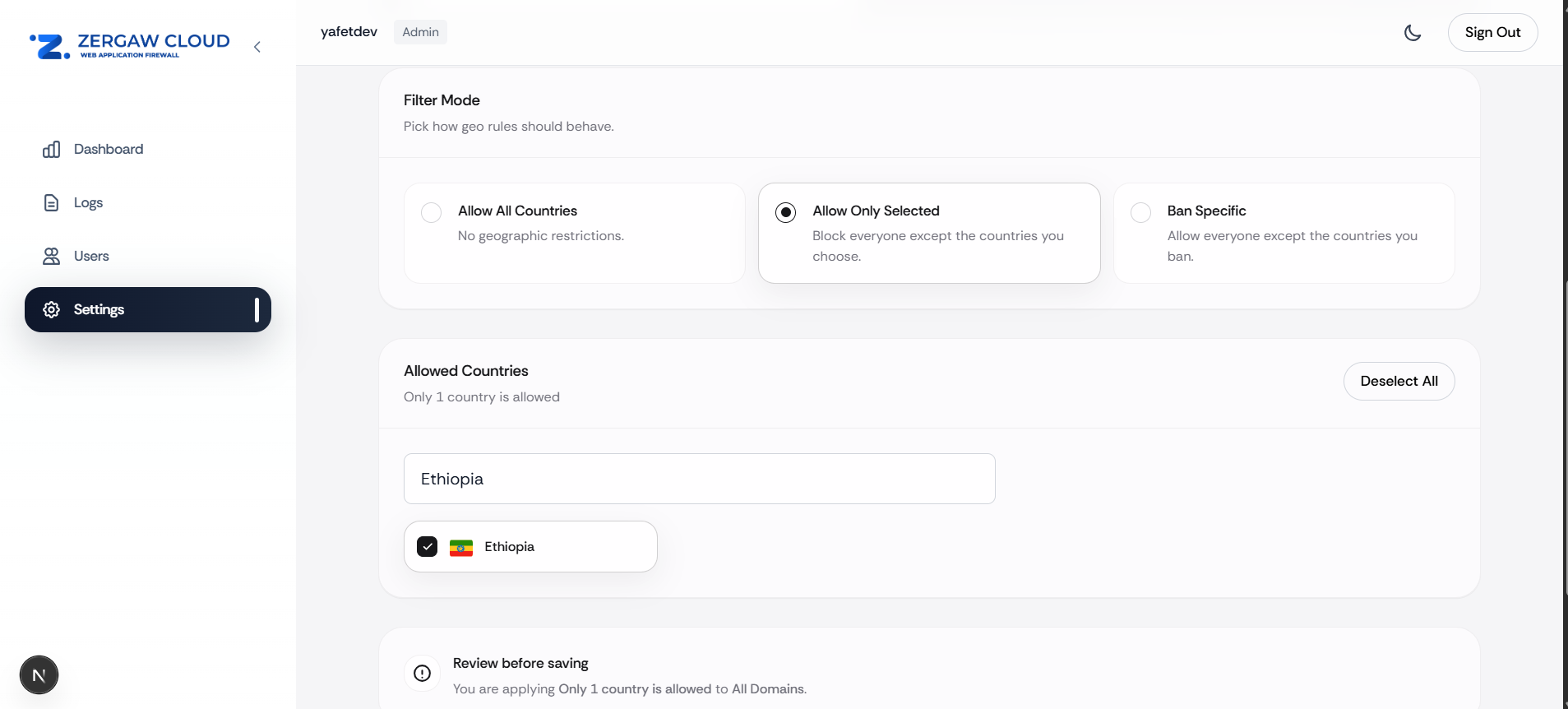
Screenshot: Geo-location access control settings
¶ Notifications
Configure how and when you receive security alerts.
Email Notifications:
- Real-Time Alerts: Receive immediate email notifications for security events
- Email List Management: Add multiple email addresses for notifications
- Severity Filtering: Choose which severity levels trigger notifications
- Domain Filtering: Receive alerts for specific domains or all domains
- Email Summary Reports: Configure daily, weekly, or monthly summary emails
Telegram Notifications:
- Bot Integration: Connect your Telegram account for instant alerts
- Real-Time Messages: Receive security alerts directly in Telegram
- Interactive Actions: Quick actions like banning IPs directly from Telegram messages
- Chat Management: Connect and disconnect Telegram notifications as needed
Notification Settings:
- Severity Filters: Control which events trigger notifications (Critical, High, Medium, Low, or All)
- Domain Filters: Choose to receive alerts for all domains or specific ones
- Test Notifications: Send test messages to verify your notification setup
Use Cases:
- Staying informed about security events in real-time
- Team-wide alert distribution
- Compliance and audit trail
- Quick response to threats
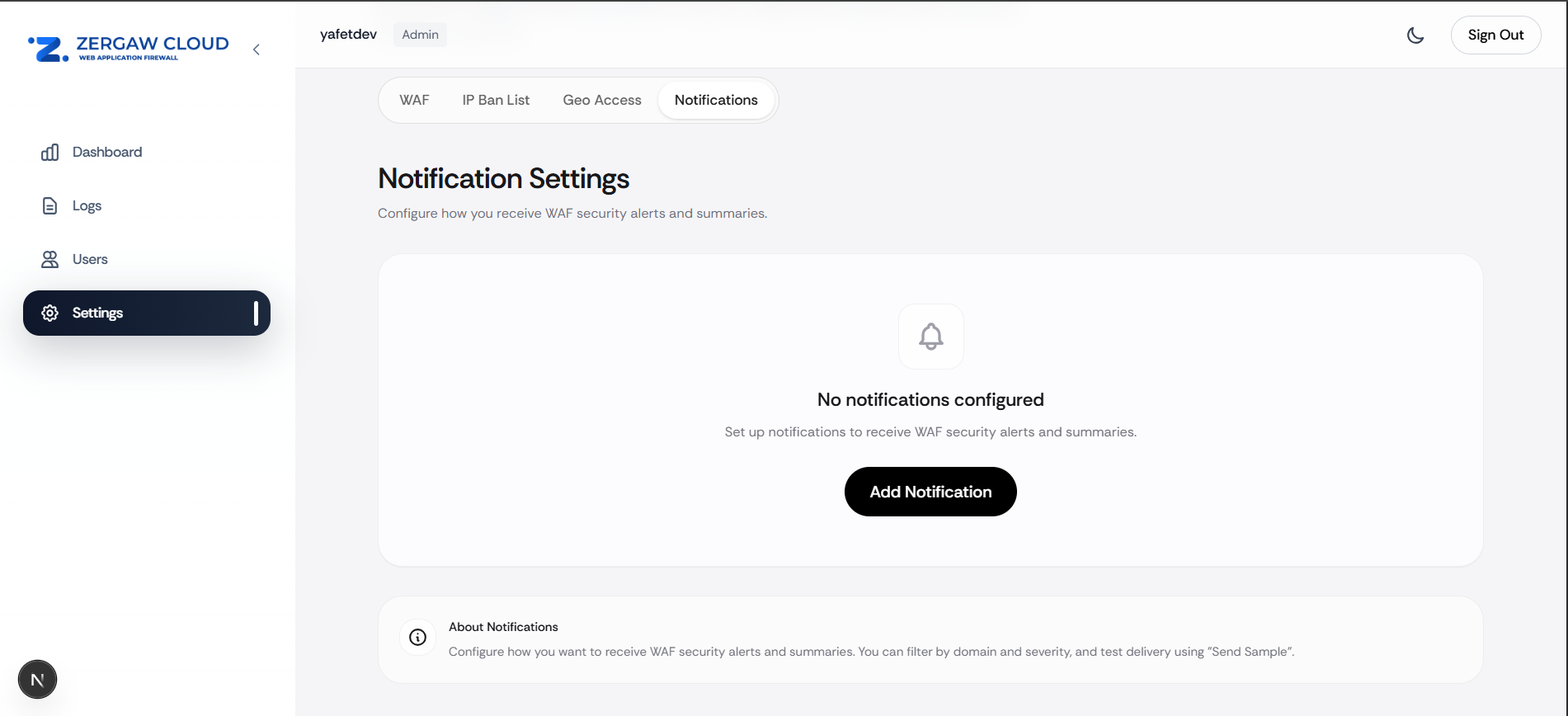
Screenshot: Notification configuration interface
¶ Feature Summary Table
| Feature | Purpose | Key Actions |
|---|---|---|
| Dashboard | Real-time monitoring | View stats, maps, charts, recent activity |
| Logs | Event analysis | Search, filter, view details, export |
| Attack Maps | Geographic analysis | View attack origins, identify patterns |
| Attack Charts | Trend analysis | Analyze attack patterns over time |
| User Management | Access control | Invite users, assign roles, manage access |
| WAF Control | Protection management | Enable/disable WAF per domain |
| IP Ban List | Threat blocking | Add/remove banned IP addresses |
| Geo Access | Location-based control | Allow/block countries per domain |
| Email Notifications | Alert delivery | Configure email alerts and summaries |
| Telegram Notifications | Instant alerts | Connect bot, receive real-time alerts |
¶ Navigation Structure
The portal is organized into main sections accessible from the sidebar:
- Dashboard - Overview and monitoring
- Logs - Detailed event analysis
- Rules - Security rule management
- Users - User and access management
- Settings - Configuration and notifications
Each section provides focused tools for specific security management tasks.
¶ Quick Start Workflow
¶ Initial Setup
- Configure Domains: Ensure all your domains are added to your organization
- Enable WAF: Go to Settings → WAF and enable protection for your domains
- Set Up Notifications: Configure email or Telegram alerts in Settings → Notifications
- Review Dashboard: Check the Dashboard to understand your current security posture
¶ Daily Operations
- Monitor Dashboard: Check overview stats and recent activity
- Review Logs: Investigate any high-severity events
- Check Attack Map: Identify geographic attack patterns
- Respond to Threats: Ban IPs or adjust geo-rules as needed
¶ Ongoing Management
- Weekly Reviews: Analyze trends using time range filters
- User Management: Add or remove team members as needed
- Rule Updates: Adjust security rules based on threat patterns
- Configuration Tuning: Optimize geo-rules and notification settings
¶ Access Levels
¶ Organization Owner/Admin
- Full access to all features
- Can manage users and settings
- Can view all logs and data for organization domains
- Can configure all security settings
¶ Viewer
- Read-only access to Dashboard and Logs
- Cannot modify settings or manage users
- Can view reports and analytics
¶ Best Practices
- Regular Monitoring: Check the Dashboard daily for security events
- Proactive Response: Use IP ban list and geo-rules to block known threats
- Team Collaboration: Use notifications to keep your team informed
- Data Analysis: Use time range filters and charts to identify trends
- Access Control: Regularly review user access and roles
- Configuration Review: Periodically review and optimize settings
¶ Getting Help
- Detailed Guides: See individual feature guides for in-depth information
- Dashboard Guide: Start with the Dashboard Guide for comprehensive monitoring instructions
- Support: Contact your system administrator for technical assistance
¶ Next Steps
- Explore the Dashboard: Familiarize yourself with the monitoring tools
- Review Your Logs: Understand what security events are being detected
- Configure Notifications: Set up alerts to stay informed
- Review Settings: Customize WAF, IP bans, and geo-rules for your needs
- Read Detailed Guides: Dive deeper into specific features as needed
This overview provides a high-level summary of all features. For detailed instructions on specific features, refer to the individual guides in this documentation.
Last updated: 2/23/2026